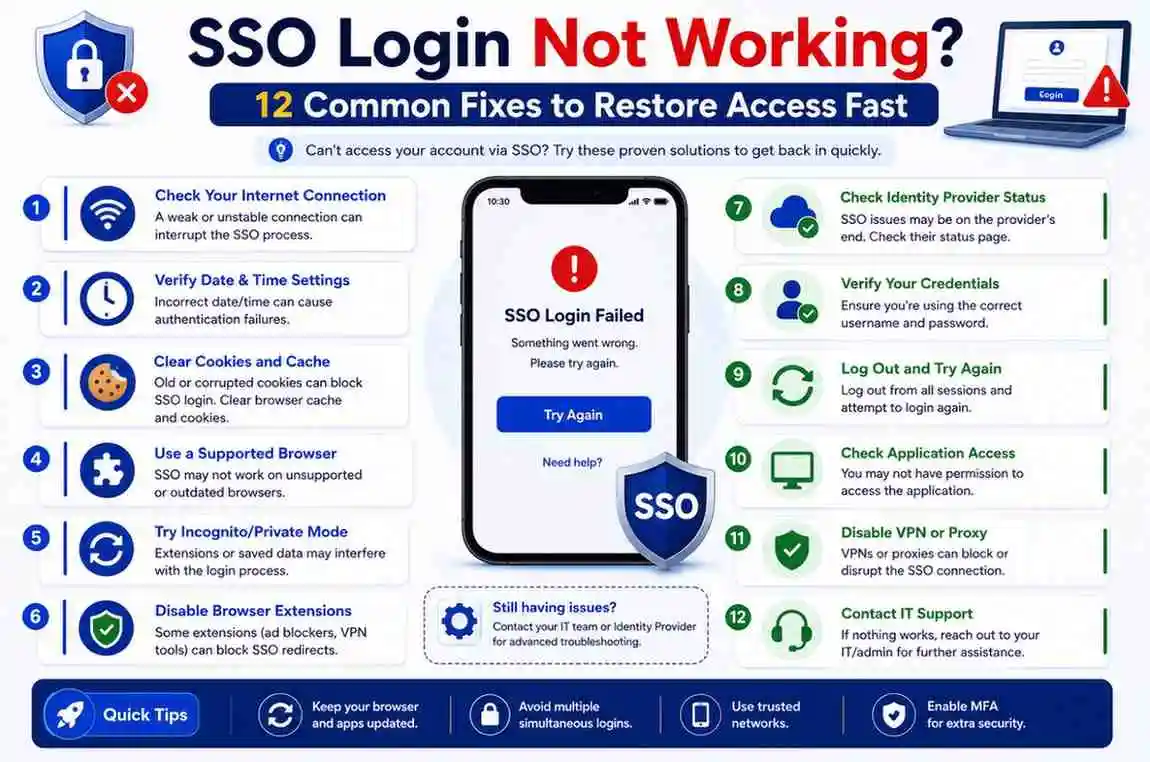
SSO Login Not Working? 12 Common Fixes to Restore Access Fast
Few things slow work down faster than opening an app or website and seeing an unexpected login error. You enter the right details, try again, refresh the page, and still nothing happens. The page keeps redirecting, the session keeps timing out, or the system simply refuses to recognize your sign-in attempt.
If your SSO login is not working, you’re not alone.
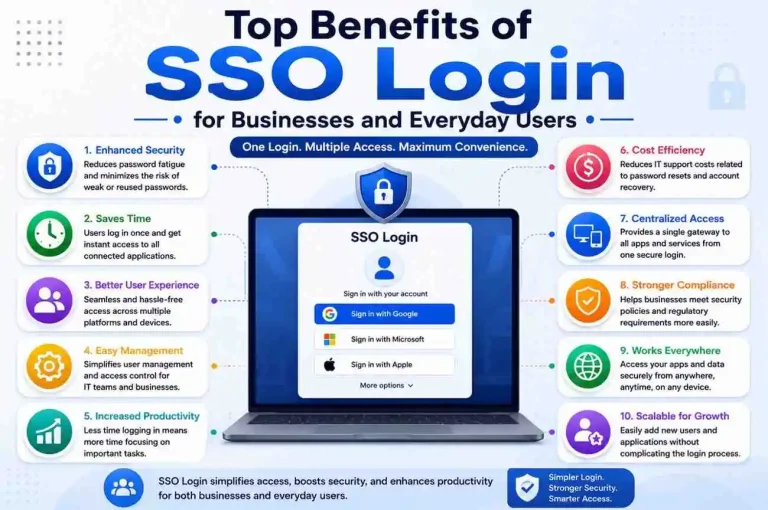
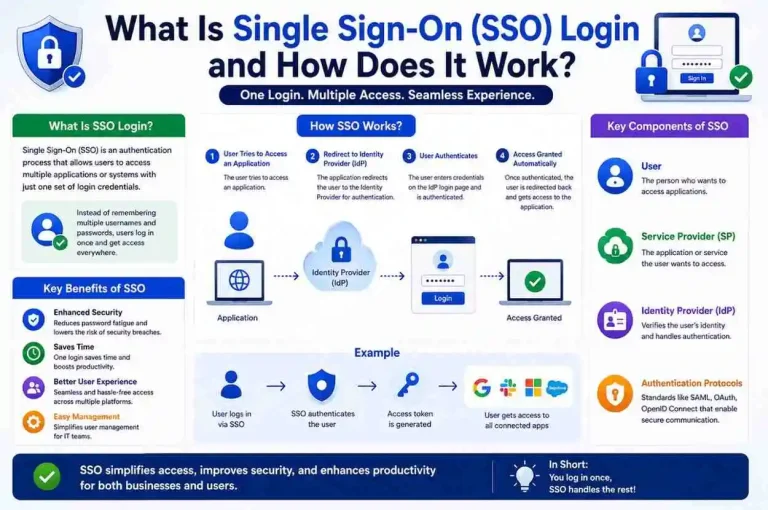
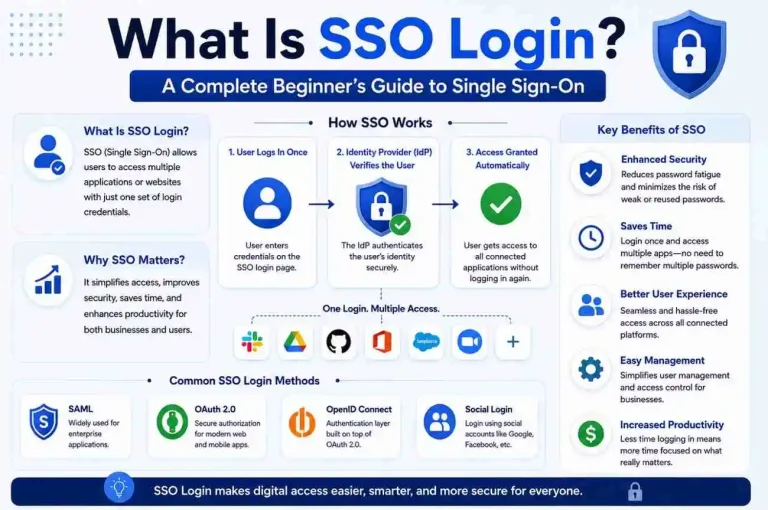
Single Sign-On (SSO) helps users access multiple applications with one set of credentials. Instead of signing into every service separately, authentication happens through a centralized identity system. It saves time, reduces password fatigue, and improves access management across business platforms. In many organizations, SSO is connected to an Identity Provider (IdP) such as Active Directory, Azure AD, Okta, Google Workspace, or another directory service that verifies user identity before granting access to a Service Provider (SP).
But when SSO authentication fails, users can lose access to email, dashboards, cloud tools, internal systems, and business applications in seconds. A small issue in browser settings, a stale authentication token, a certificate problem, or a network restriction can interrupt the entire login flow.
The good news: most SSO login issues are fixable.
This guide explains why SSO sign-in fails and walks through practical fixes that restore access quickly. It also covers common causes, mobile login problems, and prevention tips so the same issue does not keep coming back.
What Does “SSO Login Not Working” Mean?
When an SSO login stops working, the authentication request fails before the user reaches the intended application.
Normally, SSO follows a simple process:
User → Identity Provider → Authentication → Access Granted
In practice, that flow may involve redirects, security tokens, browser cookies, session validation, and communication between the identity system and the application. If something interrupts any part of that chain, access gets blocked.
You may see messages such as:
- Authentication failed
- Access denied
- Session expired
- Invalid credentials
- Unable to authenticate
- Login request timeout
- Identity verification failed
- Redirect loop detected
- SAML response invalid
- Token expired
These errors can appear across enterprise platforms, internal portals, SaaS tools, education systems, cloud applications, and remote work environments. In some cases, the login page loads normally, but the final redirect never completes. In other cases, the user is sent back to the sign-in screen again and again.
That is why SSO login troubleshooting often requires checking both the user side and the system side. A browser issue may look like an account problem. A directory sync issue may look like a password problem. A network block may look like a broken application.
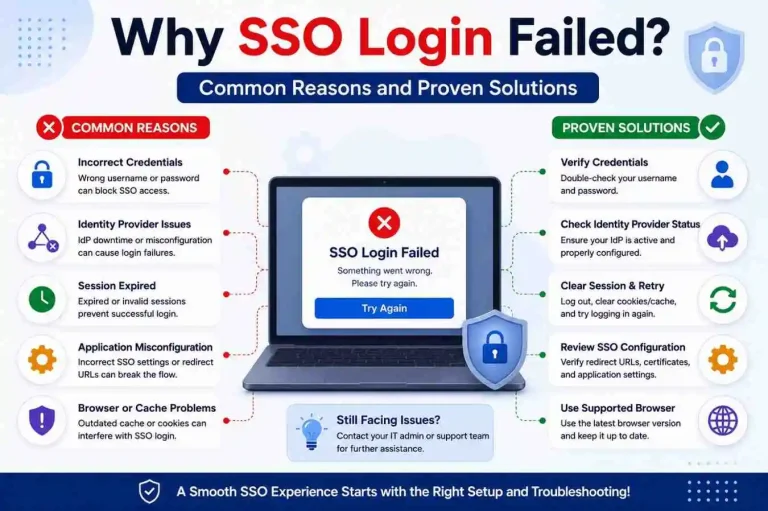
Why SSO Login Fails: Most Common Causes
Before applying fixes, it helps to understand what usually breaks the login process. SSO depends on several moving parts working together, so even a small mismatch can cause authentication to fail.
Expired User Session
Sessions expire after inactivity.
Security policies often limit active login duration to protect accounts. When expiration happens, the authentication token becomes invalid. If the user tries to continue from an old tab or bookmarked page, the system may reject the request and ask for sign-in again.
Browser Cache and Cookies Conflict
Browsers store old authentication data.
Outdated cookies can interfere with new login requests and redirect loops may appear. Cached files may also preserve an old session state, which prevents the browser from completing a fresh authentication flow. This is one of the most common reasons SSO login not working issues appear on desktop browsers.
Identity Provider Communication Error
SSO depends on communication between systems.
If the Identity Provider cannot validate requests correctly, authentication stops. This may happen because of a certificate issue, a misconfigured redirect URL, a temporary outage, or a mismatch between the IdP and the Service Provider.
Invalid Login Credentials
Even with SSO, credentials still matter.
Incorrect usernames, changed passwords, disabled accounts, or expired passwords frequently trigger login failures. In some organizations, the user may be signed into one system but not another because the directory service has not synchronized properly.
Authentication Token Problems
Tokens confirm identity between services.
Expired or corrupted tokens often cause access denial. If the token is no longer valid, the application cannot trust the login request. This can happen after a long idle period, a browser crash, or a failed redirect.
Network Restrictions
VPN settings, firewall rules, unstable internet, or DNS issues may interrupt login requests.
If the browser cannot reach the identity server or the application endpoint, the authentication flow breaks before it finishes. Corporate networks sometimes block specific ports, domains, or third-party authentication endpoints.
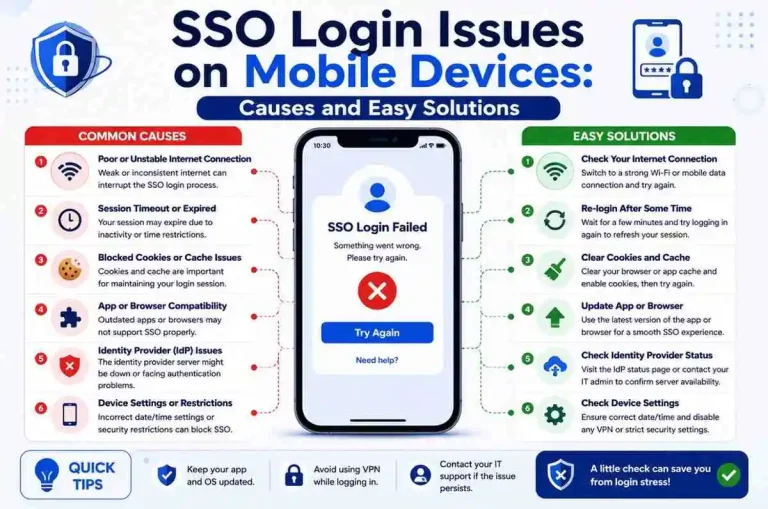
Mobile Device Configuration Issues
App permissions and outdated operating systems can interfere with SSO authentication.
Mobile browsers, embedded app browsers, and device-level security settings may prevent cookies, redirects, or secure sign-in prompts from working correctly. This is especially common when users switch between desktop and mobile access.
Security Policy Changes
Sometimes the issue is not technical failure but policy enforcement.
A new MFA requirement, a changed password policy, a revoked device trust setting, or a conditional access rule can suddenly block login. From the user’s perspective, it looks like SSO is broken, but the system is actually enforcing a new rule.
12 Common Fixes to Restore SSO Access Fast
1. Refresh the Login Session
Start with the simplest fix.
Close every open browser tab.
Sign out completely.
Wait 30–60 seconds.
Open a fresh login page.
This forces the system to generate a new authentication request instead of reusing an old session. If you were logged in through a bookmarked page or a stale tab, that old session may be the reason the login keeps failing.
Sometimes stale sessions disappear instantly after a clean restart. If the application has a “sign out of all devices” option, use it before trying again.
2. Clear Browser Cache and Cookies
Stored browser data is one of the most common reasons SSO login fails.
Remove:
- Cookies
- Cached images
- Saved site permissions
- Temporary files
- Old session data
After clearing:
- Close browser
- Reopen browser
- Attempt login again
If login works afterward, the issue was likely cached authentication data. This is especially useful when the browser keeps sending an expired token or redirecting to an old login state.
If you do not want to clear everything, try removing only the cookies and site data for the affected domain first. That often solves the problem without affecting other saved browsing data.
3. Verify Username and Password
Many users assume SSO removes credential checks.
It doesn’t.
Confirm:
- Correct email address
- Updated password
- Active account status
- Correct login domain
- Proper organization account, not a personal account
If your organization recently changed password policies, reset credentials and try again. Also check whether Caps Lock is on, whether the keyboard layout changed, or whether the account was locked after too many failed attempts.
If the account is managed through Active Directory or another directory service, a password change may take time to sync across connected systems.
4. Open Login in Incognito Mode
Private browsing removes interference from extensions and stored sessions.
Try:
Chrome → Incognito
Edge → InPrivate
Firefox → Private Window
If SSO works in private mode, your normal browser profile likely contains conflicting login data. That usually means the issue is related to cookies, cached sessions, or browser extensions rather than the account itself.
This test is useful because it quickly separates browser-related problems from identity-provider problems. If private mode works, you can focus on browser cleanup instead of escalating the issue immediately.
5. Disable Browser Extensions
Extensions can interrupt authentication requests.
Temporarily disable:
- Ad blockers
- Privacy tools
- Script blockers
- Security plugins
- Password managers that autofill incorrectly
Some extensions block redirects, strip cookies, or interfere with secure login pages. Others may inject scripts that break the authentication flow.
Enable them again one by one after testing. If the login works after disabling a specific extension, you have found the conflict. In many cases, adding the login domain to the extension’s allowlist solves the issue without removing the extension completely.
6. Update Your Browser
Old browsers sometimes fail modern authentication standards.
Update to the latest version and restart.
Modern SSO environments depend on:
- Updated security protocols
- Cookie handling
- Session validation
- Redirect compatibility
- Secure certificate support
Browser updates solve surprising numbers of authentication issues. Older versions may not support the latest SAML, OAuth, or OpenID Connect behavior correctly. They may also handle third-party cookies differently, which can break the login flow.
If the browser is managed by your organization, check whether updates are pending or blocked by policy.
7. Check Internet and Network Configuration
A weak or filtered connection may block authentication.
Test:
- Switch Wi-Fi
- Use mobile hotspot
- Restart router
- Disable VPN temporarily
- Try a different network
Corporate firewalls sometimes block identity verification requests. DNS problems can also prevent the browser from reaching the identity provider or the application server. If the login works on one network but not another, the issue is likely network-related rather than account-related.
If you use a VPN, disconnect and test again. Some SSO systems reject logins from unfamiliar IP ranges or require a trusted network path for authentication.
8. Reset Authentication Tokens
Authentication tokens eventually expire.
Sign out from:
- Browser sessions
- Desktop applications
- Mobile apps
Then authenticate again.
This creates a clean access token and often restores login immediately. If the token was corrupted or expired, a fresh sign-in request usually resolves the issue.
In some environments, you may need to clear the session from all devices before the new token is accepted. If the application offers a “log out everywhere” option, use it carefully and then sign back in from the preferred device.
9. Verify Identity Provider Settings
Organizations using centralized authentication should inspect configuration.
Check:
- Redirect URLs
- Domain mapping
- Certificate validity
- User directory synchronization
- Access permissions
- SAML assertion settings
- OAuth client configuration
- OpenID Connect endpoints
Even small configuration mismatches can trigger SSO authentication errors. For example, if the redirect URL in the Service Provider does not match the one registered in the Identity Provider, the login may fail immediately. Expired certificates can also break trust between systems.
If the issue affects multiple users at once, this step becomes especially important. That usually points to a system-level configuration problem rather than an individual account issue.
10. Re-enable Multi-Factor Authentication
If MFA recently changed, verification may fail.
Review:
- Authenticator app
- Backup methods
- Device trust settings
- Time synchronization
- Recovery codes
Reconnecting MFA can restore access. If the authenticator app is out of sync with the server time, the verification code may be rejected even when it looks correct. If the user changed phones or reinstalled the app, the old device registration may no longer be valid.
In some cases, the user must remove the old MFA profile and enroll again. If backup codes are available, they can help regain access while the primary method is repaired.
11. Fix Mobile SSO Login Issues
Mobile login failures happen more often than people expect.
Try these steps:
- Update app
- Update operating system
- Allow browser permissions
- Clear application cache
- Remove saved credentials
- Reinstall application
- Use the default browser instead of an embedded browser
If login opens repeatedly inside embedded browsers, switch to the default browser. Many mobile apps use in-app browsers that do not handle cookies or redirects as reliably as the main browser. That can break SSO authentication even when the same account works on desktop.
Also check whether the device has date and time set correctly. Incorrect time settings can cause token validation failures on mobile devices.
12. Contact Your System Administrator
If none of the fixes work, the issue may exist on the organization side.
Administrators can inspect:
- Authentication logs
- Access rules
- Directory sync
- Identity provider status
- Permission changes
- Security alerts
- Certificate expiration
- Conditional access policies
Sharing screenshots and timestamps speeds troubleshooting. If possible, include the exact error message, the device type, the browser version, and the time the issue occurred. That information helps the support team trace the login attempt in the logs.
If multiple users are affected, the administrator should also check whether the identity provider is experiencing downtime or whether a recent policy update caused the failure.
How Businesses Can Prevent Future SSO Login Problems
Prevention reduces support requests and improves user experience.
Improve Session Management
Avoid extremely short expiration periods.
Balance security with usability. If sessions expire too quickly, users will constantly be forced to sign in again. If they remain active too long, security risk increases. The right balance depends on the sensitivity of the system and the organization’s access policy.
Monitor Authentication Logs
Track failed authentication attempts regularly.
Logs reveal patterns before users report problems. Repeated failures from the same browser, device, or network can point to a configuration issue. Monitoring also helps identify certificate problems, token failures, and suspicious access attempts.
Review Access Policies
Ensure permissions match employee roles.
Incorrect user access remains a frequent cause of login failure. When employees change departments, leave the company, or receive new responsibilities, their access rights should be updated promptly. Outdated permissions can block legitimate logins or expose systems unnecessarily.
Keep Systems Updated
Maintain:
- Browsers
- Authentication servers
- Mobile apps
- Directory services
- Security certificates
Updates reduce compatibility issues. They also help maintain support for current authentication standards and security requirements. A neglected update can create login failures that affect many users at once.
Train Users
Simple login guidance prevents unnecessary support tickets.
Users should know how to clear cookies, test incognito mode, check MFA prompts, and recognize when the issue is local versus system-wide. A short internal guide can save time for both employees and support teams.
Frequently Asked Questions
Why is my SSO login not working?
The most common causes include expired sessions, browser cache conflicts, invalid credentials, token expiration, network restrictions, or identity provider configuration issues. In many cases, the problem is not the account itself but the authentication path between the browser, the identity provider, and the application.
Can clearing browser cache fix SSO issues?
Yes. Cached login data frequently interferes with authentication requests. Clearing cookies and cache often resolves redirect loops, stale sessions, and repeated login prompts.
Is SSO more secure than traditional login?
SSO can improve security by reducing password reuse and centralizing authentication controls. It also makes it easier for organizations to enforce MFA, monitor access, and manage user permissions from one place.
Why does SSO work on desktop but not mobile?
Mobile browser permissions, outdated apps, embedded browser limitations, and incorrect device settings often create authentication issues. Time synchronization and app cache can also affect mobile sign-in.
Does resetting password fix SSO errors?
If credential mismatch caused the issue, resetting passwords may restore access. However, if the problem is related to cookies, tokens, certificates, or network restrictions, a password reset alone may not solve it.
What should I do if the login keeps looping back to the sign-in page?
That usually points to a cookie, session, or redirect problem. Try clearing browser data, using incognito mode, disabling extensions, and checking whether third-party cookies are blocked.
Final Thoughts
SSO makes digital access faster and easier, but when authentication breaks, productivity stops quickly.
Most login failures come down to sessions, browser data, credentials, tokens, network settings, MFA issues, or configuration mismatches. In many cases, the fix is simple once you know where to look.
Start with the quick fixes first—refresh sessions, clear cache, test another browser, and verify credentials. If the problem continues, involve your administrator and review authentication logs. That approach is usually faster and more effective than repeated login attempts.
A structured troubleshooting process not only restores access faster, it also helps prevent the same SSO login problem from returning again and again.