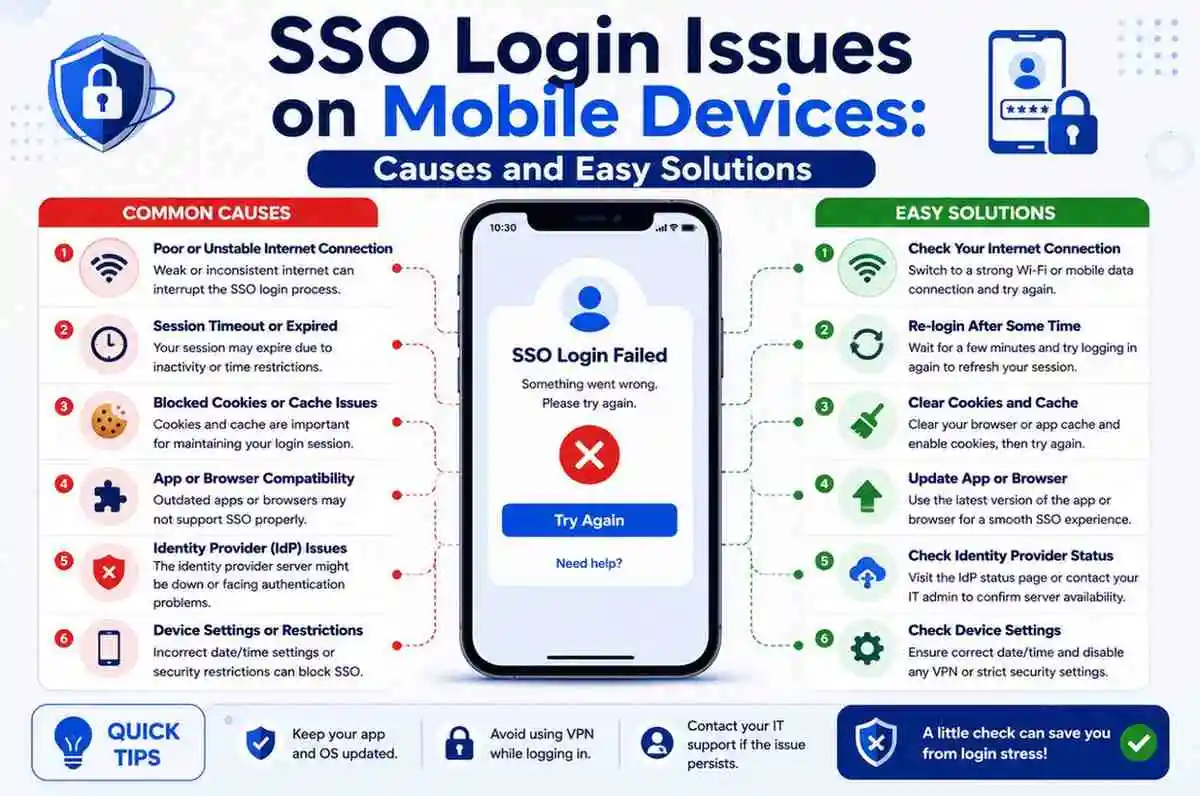
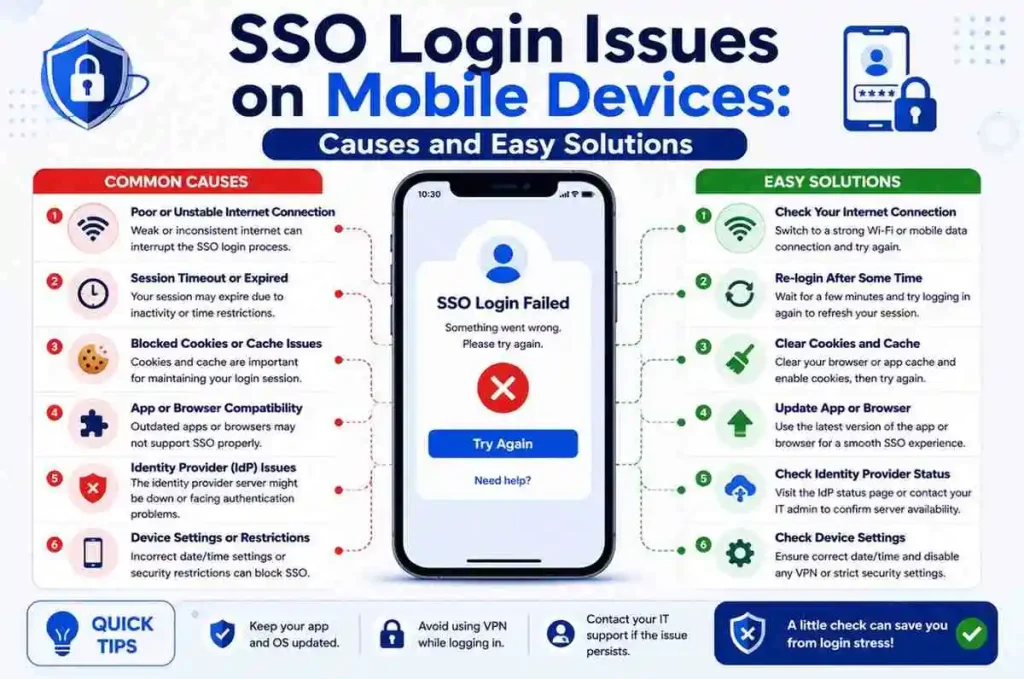
SSO Login Issues on Mobile Devices: Causes and Easy Solutions
Single Sign-On (SSO) has made digital access much easier for users across industries. Instead of remembering and entering separate usernames and passwords for every application, users can authenticate once and move between connected services with far less friction. For businesses, this improves productivity and reduces password-related support requests. For everyday users, it creates a smoother and more convenient login experience.
However, while SSO works well in many environments, mobile devices can introduce a different set of challenges. A login flow that works perfectly on a desktop browser may fail on a smartphone or tablet because of browser restrictions, app permissions, operating system settings, network instability, or session handling issues. As mobile usage continues to grow, these problems have become more noticeable for employees, customers, students, and remote workers who rely on mobile access throughout the day.
Many users encounter problems such as endless loading screens, repeated login prompts, authentication failures, expired sessions, browser redirects that never complete, or unexpected sign-outs. These issues can interrupt work, delay access to important services, and create frustration for both businesses and everyday users.
The good news is that most mobile SSO login problems have identifiable causes and practical solutions. In many cases, the issue is not with the SSO system itself but with the device, browser, app version, or network environment.
This guide explains the most common SSO login issues on mobile devices, why they happen, and how to fix them in simple, practical ways.
What Is SSO Login on Mobile Devices?
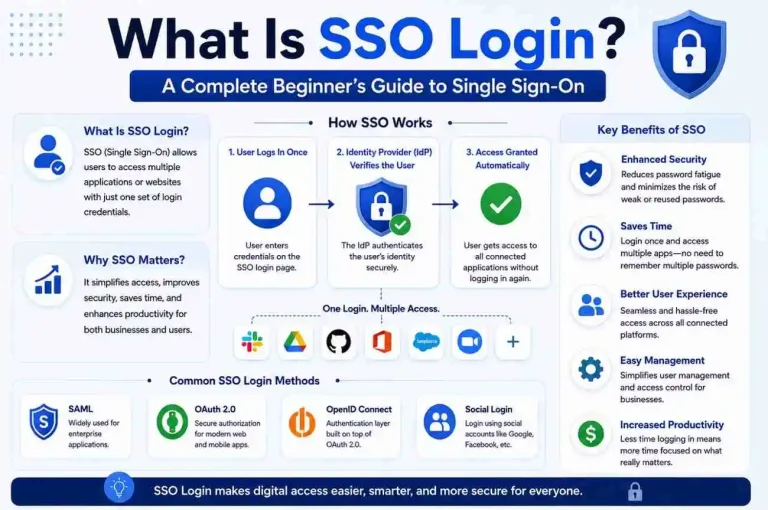
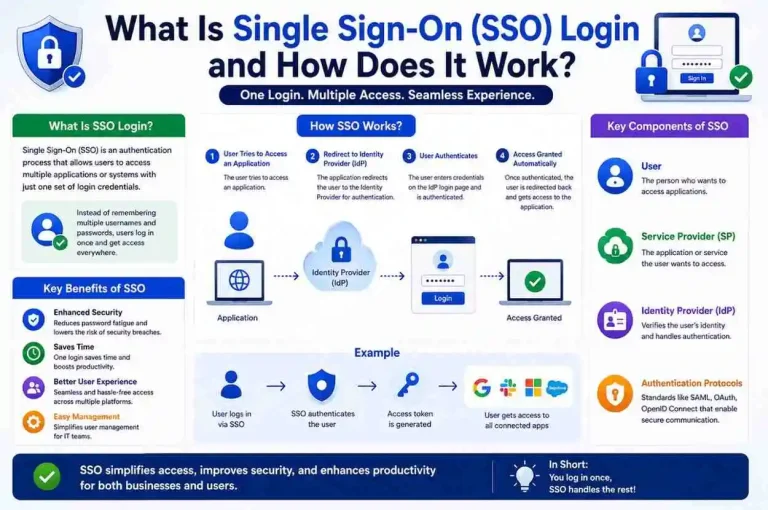
Single Sign-On on mobile devices works in a similar way to desktop environments. A user opens an app or mobile browser, enters credentials once, and is authenticated through a central identity provider. That identity provider verifies the user’s identity and then grants access to connected apps or services without requiring repeated logins.
A typical mobile SSO flow looks like this:
Open App → Authentication Request → Identity Provider → Verification → Access Granted
Mobile SSO often depends on several technologies and components working together correctly, including:
- Authentication tokens
- Secure sessions
- Mobile browsers
- App permissions
- Device trust
- Cookies
- Redirect handling
- OAuth
- OpenID Connect
- SAML authentication
Because mobile operating systems manage apps, browsers, and background processes differently from desktop systems, even small configuration issues can interrupt the authentication process. A blocked cookie, outdated app, incorrect time setting, or unstable internet connection may be enough to break the login flow.
Why Mobile SSO Problems Are Common
Mobile environments are more complex than many users realize. A smartphone or tablet is not just a smaller computer; it is a device with its own security rules, browser behavior, app lifecycle management, and network handling. These differences can affect how SSO sessions are created, stored, and validated.
Several factors influence successful authentication on mobile devices:
- Device operating system
- Browser behavior
- App permissions
- Internet quality
- Session policies
- Security settings
- Background process limitations
When one of these factors fails, SSO may stop working correctly. For example, a browser may block a redirect needed to complete login, or a device may clear session data too aggressively when switching between apps. In other cases, the identity provider may reject the login because the device clock is incorrect or the VPN changes the user’s apparent location.
Understanding these causes makes troubleshooting much easier. Instead of repeatedly trying to log in without knowing why it fails, users can identify the likely source of the problem and apply the right fix.
1. Expired Login Session
One of the most common causes of SSO failure is an expired session. SSO relies on authentication tokens that remain active for a limited period. These tokens are designed to improve convenience while still protecting user accounts. Once the token expires, the system requires the user to authenticate again.
If the session expires:
- Users may return to the login page
- Authentication loops may occur
- Connected applications may lose access
Common signs:
- Sudden logout
- Login works temporarily
- Authentication repeats
- The app keeps asking for credentials even after successful sign-in
This issue is especially common when users leave an app open in the background for a long time or switch between apps without refreshing the session.
Easy Solution:
- Sign out completely
- Close all connected apps
- Reopen the application
- Sign in again
If available, use the “Clear Session” option or fully log out from the identity provider before trying again. In some cases, restarting the device can also help remove stale session data.
2. Browser Cookie Restrictions
Mobile SSO often depends on browser cookies to store session information and maintain authentication state. Cookies help the identity provider recognize the user during redirects and verify that the login process is still valid.
Some privacy settings block third-party cookies or session storage. When this happens, the identity provider may not be able to complete the authentication flow.
When cookies are restricted:
- Identity verification cannot complete
- Redirect pages fail
- Login requests restart
- The user may be sent back to the beginning of the login process
Easy Solution:
For mobile browsers:
- Enable cookies
- Allow cross-site tracking if required
- Disable strict tracking protection temporarily
- Restart the browser
After making these changes, retry authentication. If the login works after enabling cookies, the issue was likely caused by browser privacy restrictions. Users who frequently access work apps through mobile browsers may need to adjust these settings permanently for trusted services.
3. Outdated Mobile Application
Old app versions frequently cause SSO compatibility issues. Identity providers update authentication methods regularly, and apps must support those changes to continue working properly. If an app has not been updated in a while, it may fail to support new token formats, updated APIs, or security improvements.
Symptoms:
- White screen after login
- Redirect failures
- Endless loading
- Login succeeds but the app never opens correctly
- Authentication works on one device but not another
Easy Solution:
- Update the application
- Update the operating system
- Restart the device
- Retry login
Keeping apps current reduces authentication errors and improves overall security. In many cases, simply updating the app from the App Store or Google Play Store resolves the issue immediately. If the app is managed by an organization, users may need to wait for the IT team to release a compatible version.
4. Weak or Unstable Internet Connection
SSO depends on multiple communication steps. Authentication often requires access to the identity provider, token validation, redirect processing, and application authorization. If the internet connection is weak or unstable, one of these steps may fail before the login process is complete.
Common symptoms:
- Timeout errors
- Incomplete login
- Unexpected logout
- Pages that load partially and then stop
- Authentication that works only on certain networks
This issue is especially common when users move between Wi-Fi and mobile data, travel through areas with poor signal, or use public networks with limited reliability.
Easy Solution:
- Switch Wi-Fi networks
- Disable VPN temporarily
- Move to a stronger signal
- Test another network
- Turn airplane mode on and off to refresh the connection
If the login works on one network but not another, the problem may be related to network filtering or unstable connectivity rather than the SSO system itself.
5. Mobile Browser Compatibility Issues
Not all mobile browsers behave the same way. Some browsers block redirects, restrict cookies, limit popups, or handle authentication pages differently. Since SSO systems often rely on browser-based redirects, compatibility issues can easily interrupt the login flow.
Easy Solution:
Try using a different browser such as:
- Chrome
- Safari
- Edge
- Firefox
Also make sure the browser is updated to the latest version before testing again. If the login works in one browser but not another, the issue is likely related to browser behavior or privacy settings. For organizations that support mobile web access, it is often helpful to recommend a preferred browser for SSO use.
6. Incorrect Device Date and Time
Authentication tokens rely on accurate timing. If the device clock differs significantly from the correct time, the system may treat the token as expired or invalid. Even a small mismatch can cause validation problems in some environments.
Easy Solution:
Enable automatic time settings:
Settings → Date & Time → Automatic Time
After enabling automatic time, restart the application and try logging in again. This simple fix resolves many authentication problems that appear mysterious at first. It is especially important for users who travel across time zones or manually adjust their device clock.
7. VPN and Network Security Conflicts
VPN services can interfere with authentication because they change the user’s apparent location and IP address. Identity providers sometimes detect these changes as suspicious, especially if the login appears to come from a different region or network than expected.
Symptoms:
- Access denied
- Repeated verification
- Failed login attempts
- Security warnings
- Login loops after entering credentials
Easy Solution:
- Disable VPN temporarily
- Switch region if the VPN must remain active
- Retry login
- Check whether the organization allows VPN access for mobile SSO
If the VPN is required for work, users should contact IT support to confirm whether the VPN configuration is compatible with the SSO system. Some organizations require specific VPN settings or trusted network conditions before allowing access.
8. Multi-Factor Authentication Problems
Many SSO systems combine SSO with Multi-Factor Authentication (MFA). This adds an extra layer of security, but it can also create login issues if the second factor fails.
Problems occur when:
- OTP expires
- Authenticator app is unsynced
- Push notifications are blocked
- The wrong device is selected
- The user does not receive the verification prompt in time
Easy Solution:
- Sync authenticator time
- Allow notifications
- Generate a new code
- Reconnect the MFA device
- Check whether the app has notification permissions enabled
If the MFA code keeps failing, the user may need to re-register the authenticator app or request a new setup from the organization’s support team. Since MFA is often tied to security policy, users should avoid repeatedly guessing codes, as this may trigger account lockouts.
9. App Cache Corruption
Corrupted cache files may break SSO sessions or prevent the app from loading correctly. Mobile apps store temporary data to improve speed, but when that data becomes outdated or damaged, it can interfere with login behavior.
Symptoms:
- Blank screen
- Frozen login
- Session loops
- App crashes during authentication
- Login works after reinstalling but fails again later
Easy Solution:
On Android:
Settings → Apps → Storage → Clear Cache
On iPhone:
Reinstall the application if necessary
Clearing cache removes temporary files without deleting the account itself in most cases. If the issue continues after clearing cache, reinstalling the app may be the best next step. This forces the app to rebuild its local data and often resolves hidden corruption problems.
10. Multiple Accounts Causing Conflicts
Users often stay signed into multiple identities on the same device. For example, someone may have both a personal account and a work account, or multiple organizational accounts tied to different email addresses. This can confuse SSO providers and cause the wrong profile to open.
Example:
Personal account + Work account
Result:
- Wrong profile opens
- Authentication mismatch
- Access denied
- The app connects to the wrong tenant or organization
Easy Solution:
- Log out of all accounts
- Close the browser
- Reauthenticate with the correct account
- Clear saved account suggestions if needed
If the device frequently switches between personal and work use, it may help to use separate browsers or separate app profiles to avoid account conflicts.
11. Device Security Restrictions
Some organizations apply mobile security rules to protect sensitive data. These rules may block access from devices that do not meet security standards. In some cases, the device itself may be considered untrusted because of its configuration.
Blocked conditions may include:
- Rooted devices
- Jailbroken devices
- Missing encryption
- Unsupported OS
- Disabled screen lock
- Outdated security patches
Easy Solution:
- Update security settings
- Remove unsupported modifications
- Register the device properly
- Install required management software
- Ensure the operating system is supported
If the device does not meet the organization’s security requirements, SSO access may be intentionally blocked. In that case, the user will need to bring the device into compliance or use a supported device instead.
12. Authentication Redirect Failures
SSO frequently uses redirects to move the user between the app, browser, and identity provider. If redirects fail, the login process may never complete. This can happen when the browser blocks popups, the app does not open the correct browser, or the operating system prevents the redirect from finishing.
Easy Solution:
Enable the following:
- Open supported browser
- Allow redirects
- Permit external app opening
- Disable aggressive popup blocking if necessary
If the login page opens but never returns to the app, the redirect may be getting interrupted. In such cases, copying the login link into a supported browser or using the organization’s recommended app flow may solve the issue.
Best Practices to Prevent Mobile SSO Issues
To reduce future login problems, users and organizations should follow a few simple best practices. These habits improve reliability and reduce the chance of repeated authentication failures.
- Keep apps updated
- Enable automatic time
- Use trusted browsers
- Clear cache periodically
- Update the operating system
- Enable MFA
- Avoid unnecessary VPN usage
- Review permissions
- Use supported devices
- Log out properly when switching accounts
These practices help maintain a stable authentication environment and reduce the likelihood of session errors, redirect failures, and compatibility problems. For organizations, providing users with clear mobile login instructions can also prevent many support requests.
When to Contact Support
Some mobile SSO issues can be fixed by the user, but others require help from IT or support teams. Contact support if:
- Multiple devices fail
- MFA stops working
- Account appears locked
- Errors persist after reinstalling
- The login works on desktop but not on mobile
- The device is rejected even after updates and configuration changes
When contacting support, provide as much detail as possible, including:
- Device model
- OS version
- Browser version
- App version
- Screenshot of the error
- Time the issue occurred
- Whether the problem happens on Wi-Fi, mobile data, or both
This information helps support teams identify the cause more quickly and avoid unnecessary back-and-forth.
Final Thoughts
SSO login on mobile devices makes access faster and more convenient, but mobile environments create unique authentication challenges. Unlike desktop systems, mobile devices must deal with browser restrictions, app lifecycle behavior, network changes, security policies, and background limitations that can interrupt the login process.
Most issues come from sessions, cookies, browsers, updates, cache, connectivity, or security settings—not from the SSO system itself. That means many problems can be solved with simple steps such as clearing cache, updating the app, enabling cookies, checking the device clock, or switching browsers.
By understanding the root causes and applying practical fixes, users can restore access quickly and reduce future login interruptions. For businesses, improving mobile SSO reliability can lead to better productivity, fewer support tickets, and a smoother user experience.
As mobile-first workflows continue to grow, maintaining a reliable SSO experience will become even more important for both businesses and everyday users.