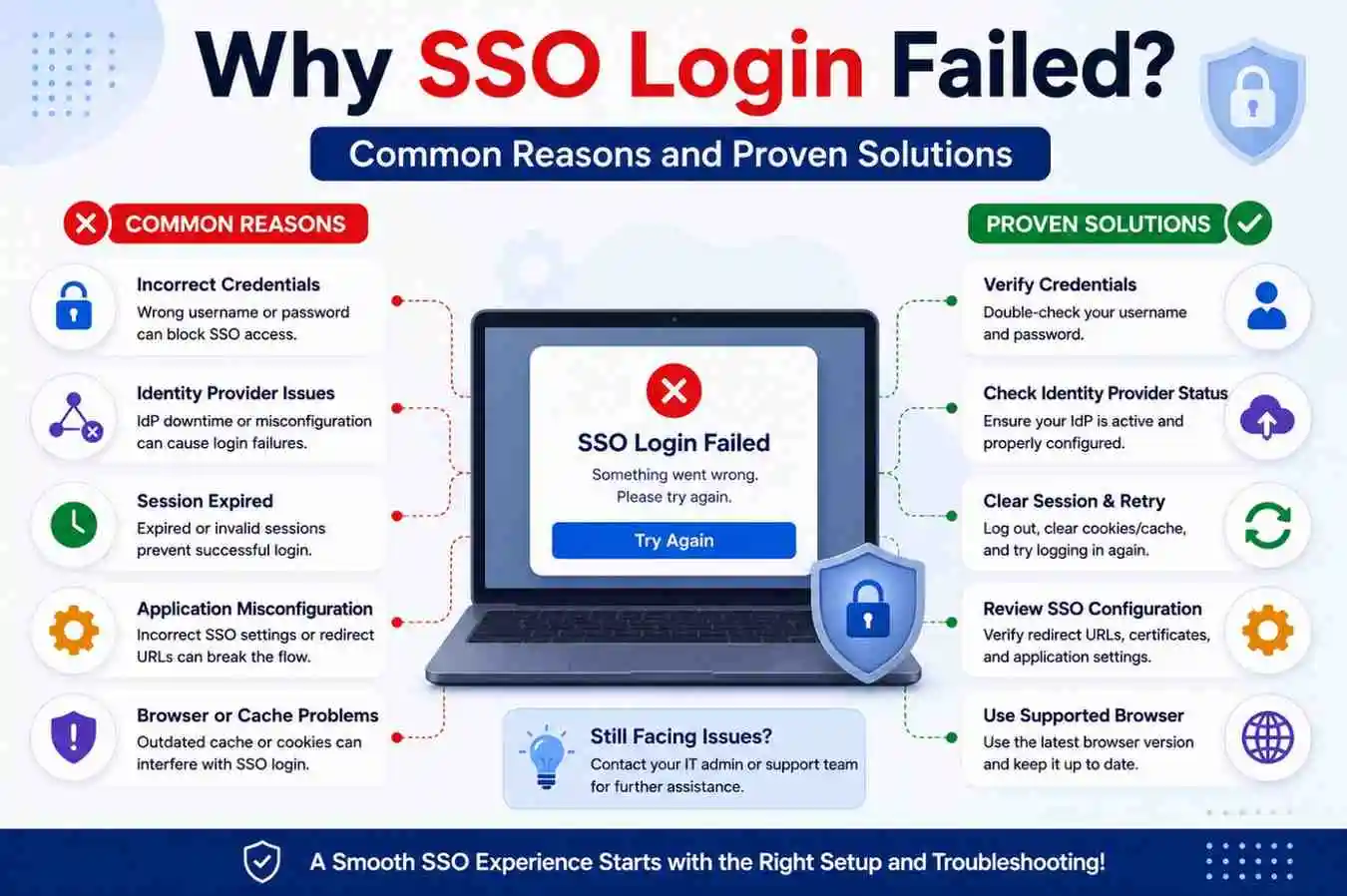
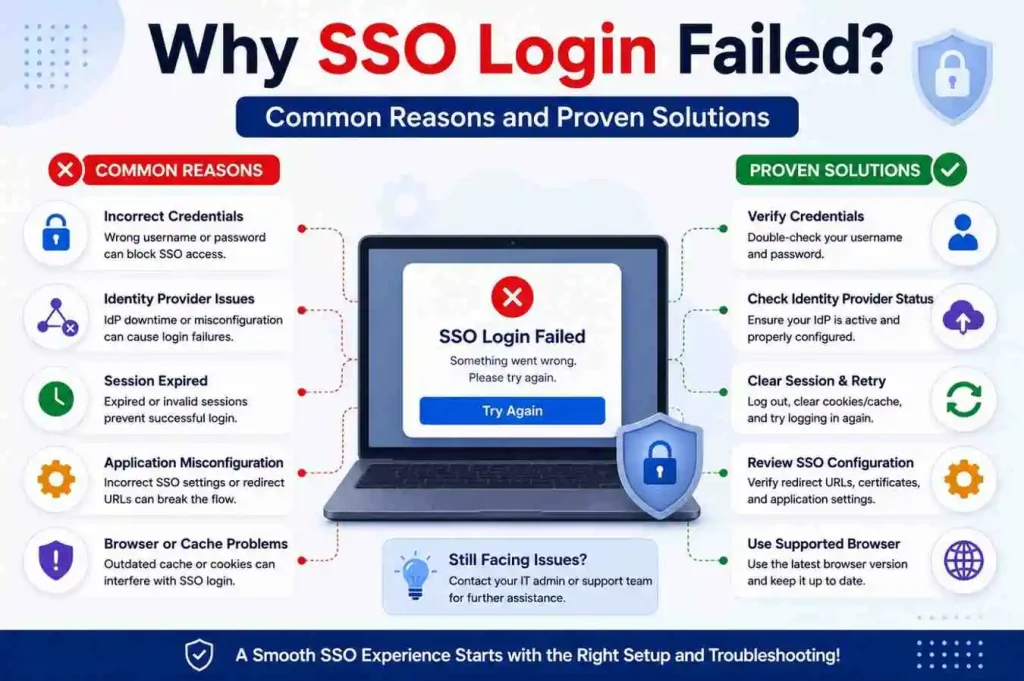
Why SSO Login Failed? Common Reasons and Proven Solutions
Single Sign-On (SSO) has become one of the most widely used authentication methods across modern websites, enterprise systems, cloud applications, educational portals, and mobile platforms. By allowing users to sign in once and access multiple connected services, SSO reduces login friction, saves time, and creates a smoother digital experience for both individuals and organizations.
But despite its convenience, SSO login failures still happen.
You open an application, enter your credentials, and suddenly see messages like:
- “Authentication Failed”
- “Unable to Sign In”
- “Access Denied”
- “Session Expired”
- “Invalid Token”
- “Login Unsuccessful”
Sometimes the screen refreshes repeatedly. Other times authentication appears successful, but the application never loads. In some cases, users are redirected back to the login page again and again, creating a frustrating loop that seems impossible to break.
These issues affect employees, students, businesses, administrators, and everyday users. Because SSO connects multiple systems through one identity layer, even a small problem can interrupt access to several applications at once.
The good news is that most SSO failures are caused by identifiable technical, browser-related, or configuration problems—and many can be fixed quickly with the right troubleshooting steps.
This guide explains the most common reasons SSO login fails and provides proven solutions to restore access.
What Does an SSO Login Failure Mean?
An SSO failure occurs when the authentication process cannot successfully verify identity or complete communication between the user, identity provider, and application.
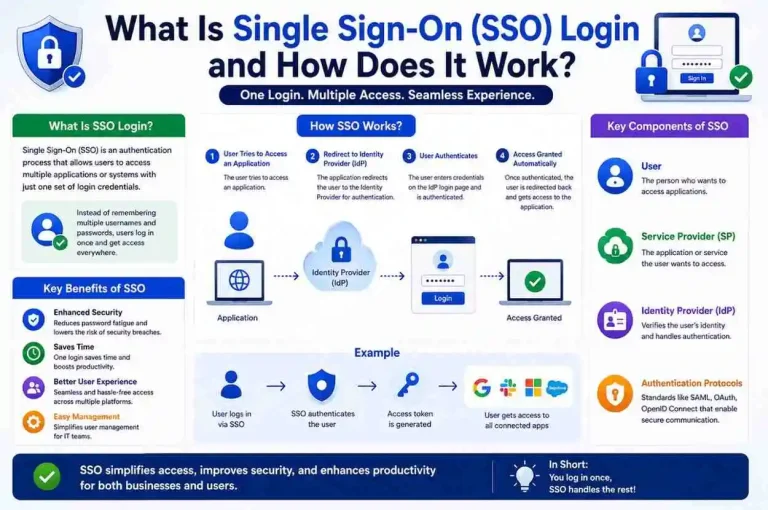
A successful SSO process generally follows this flow:
User → Authentication Request → Identity Provider → Token Verification → Application Access
If any stage breaks, login fails.
SSO failures may happen because of:
- Session issues
- Browser settings
- Expired authentication tokens
- Network interruptions
- Incorrect account permissions
- Device restrictions
- Security policies
- Configuration errors
Understanding where the process breaks is the first step toward solving the issue. In many cases, the problem is not with the user’s password alone, but with the way the browser, device, identity provider, or connected application is handling the authentication request.
1. Incorrect Username or Password
One of the simplest and most common reasons for SSO login failure is entering incorrect credentials.
Although SSO reduces repeated logins, users still authenticate through a central identity system. If the username, email address, or password is wrong, the login process cannot continue.
Typical mistakes include:
- Wrong password
- Incorrect email address
- Extra spaces before or after the username
- Saved outdated credentials
- Auto-fill errors
- Caps Lock being enabled
- Using the wrong account for the wrong organization
This issue is especially common when users manage multiple work, school, or personal accounts and accidentally choose the wrong one.
Proven Solution
Try these steps:
- Type credentials manually instead of relying on auto-fill
- Disable browser autofill temporarily
- Verify keyboard language and layout
- Check whether Caps Lock or Num Lock is affecting input
- Reset the password if needed
- Confirm that the account is active and not locked or disabled
If password recovery is available, use the official reset procedure provided by the organization or identity provider. Avoid guessing passwords repeatedly, since too many failed attempts may trigger a lockout.
2. Expired Authentication Session
SSO platforms use authentication sessions that remain active for a limited time. These sessions are designed to improve convenience while still protecting security.
After expiration:
- Applications may reject access
- Redirect loops may appear
- Login pages may reload continuously
- The system may ask for reauthentication even after a successful sign-in
This often happens when a user leaves a browser tab open for too long, switches devices, or returns to an application after a long period of inactivity.
Common Symptoms
- Logged out unexpectedly
- Endless login screen
- Repeated authentication prompts
- “Session expired” messages
- Being sent back to the sign-in page after login
Proven Solution
- Sign out fully from the application and identity provider
- Close the browser completely
- Clear active sessions if the platform allows it
- Reopen the browser and sign in again
- If necessary, restart the device
Session renewal usually resolves the issue. In enterprise environments, administrators may also need to adjust session timeout settings if users are being logged out too quickly.
3. Browser Cookies Are Disabled
Cookies often carry authentication information between applications and identity providers. In SSO systems, cookies help maintain session continuity and allow the browser to remember that the user has already been verified.
If cookies are blocked, restricted, or deleted too aggressively, the authentication flow can break.
Symptoms
- Login starts but never completes
- Access returns to the sign-in page
- Unexpected authentication errors
- Repeated redirects between applications and login pages
- SSO works in one browser but not another
Proven Solution
Enable:
- Browser cookies
- Session cookies
- Cross-site cookies where required by the platform
Then restart the browser and try again.
If the browser has strict privacy settings, third-party cookie blocking, or tracking protection enabled, those settings may need to be adjusted for the identity provider or application domain. In some cases, adding the site to a trusted list can help.
4. Cached Browser Data Is Corrupted
Browsers store temporary files, cached scripts, and site data to improve speed and reduce loading times. However, outdated or corrupted cache can interfere with SSO authentication.
When the browser loads old data instead of fresh authentication information, the login process may fail or behave unpredictably.
Signs
- White page after login
- Login loops
- Broken redirects
- Missing page elements
- Authentication works in private mode but not in normal mode
Proven Solution
Clear:
- Cache
- Cookies
- Site data
- Stored login information if necessary
Then restart the browser and try again.
Testing in private or incognito mode may also help determine whether the issue is caused by stored browser data. If SSO works in private mode, the problem is usually related to cache, cookies, or extensions.
5. Identity Provider Service Is Unavailable
SSO depends heavily on identity providers. If the identity system becomes unavailable, authentication cannot proceed and connected applications may stop responding.
This can happen because of:
- Scheduled maintenance
- Server outages
- Network failures
- Certificate problems
- Misconfigured identity services
Symptoms
- Multiple apps fail simultaneously
- Global login outage
- Users cannot authenticate anywhere
- Error pages appear before the application loads
Proven Solution
- Check service announcements or status pages
- Retry later if the issue is temporary
- Contact the administrator or IT team
- Confirm whether the outage affects only one application or the entire identity platform
Large outages usually affect many users at once, which is a strong sign that the issue is not local to one device or browser.
6. Expired Authentication Token
SSO systems issue temporary tokens to prove that a user has already been authenticated. These tokens are usually valid only for a limited time.
If the token expires, becomes corrupted, or is rejected by the application, access will fail.
Symptoms
- Access denied
- Token validation failed
- Unexpected logout
- Application loads partially and then stops
- Login succeeds but access is not granted
Proven Solution
- Log out completely
- Close all related browser tabs
- Generate fresh authentication by signing in again
- Retry access from the beginning
Tokens refresh after new authentication. If the problem keeps happening, the token lifetime or validation settings may need to be reviewed by the system administrator.
7. Multi-Factor Authentication Errors
Many SSO systems require Multi-Factor Authentication (MFA) for added security. MFA may involve a code from an authenticator app, a push notification, a text message, or a hardware security key.
Problems occur when:
- Verification codes expire too quickly
- The authenticator app time is unsynced
- Push notifications fail to arrive
- The security key is not recognized
- The backup method is unavailable
Proven Solution
- Resync the authenticator app if time-based codes are failing
- Generate a new code and enter it promptly
- Confirm that notifications are enabled on the device
- Check internet and mobile signal strength
- Reconnect or re-register the security method if needed
If MFA repeatedly fails, users may need to reset their second-factor method through the organization’s identity portal or support team.
8. Browser Compatibility Problems
Not all browsers handle redirects, cookies, scripts, and security policies in the same way. Some browsers may block certain authentication behaviors or fail to support the latest SSO standards properly.
Symptoms
- Redirect errors
- Partial page loads
- Authentication interruption
- Buttons or login forms not responding
- SSO working in one browser but failing in another
Proven Solution
Try:
- An updated browser version
- A supported browser recommended by the organization
- Private browsing mode
- A different browser entirely
Update the browser before testing, since outdated versions may not support modern authentication protocols or security requirements. Also check whether browser extensions, ad blockers, or privacy tools are interfering with the login flow.
9. VPN or Proxy Interference
VPNs and proxies can change the user’s IP address, location, or network route. While these tools are useful for privacy and remote access, they may also trigger security protections in SSO systems.
Authentication systems may detect:
- Location inconsistency
- Suspicious access patterns
- IP changes during login
- Traffic coming from restricted regions
Proven Solution
- Disable the VPN temporarily
- Retry on a normal internet connection
- Use an approved corporate network if required
- Check whether the organization allows VPN access for SSO
Some organizations enforce location-based or device-based policies, so a VPN may cause the login attempt to be blocked even when the credentials are correct.
10. Incorrect Date and Time Settings
Authentication relies on accurate timestamps. If the device clock is incorrect, token validation may fail because the system believes the token is expired, not yet valid, or out of sync.
This issue is more common than many users realize, especially on devices that have been offline for a long time or have manually changed time settings.
Proven Solution
Enable:
Automatic Date and Time
Also make sure the correct time zone is selected. After updating the settings, restart the browser or application and try again.
11. Permission or Access Policy Restrictions
Sometimes authentication succeeds, but authorization fails. In other words, the system knows who the user is, but it does not allow access to the requested application or resource.
Examples include:
- Account removed from a group
- Missing permissions
- Expired access rights
- Role changes
- Application not assigned to the user
Symptoms
- Access denied
- Unauthorized user
- Restricted application
- Login works, but the dashboard or resource is unavailable
Proven Solution
Ask the administrator to:
- Review permissions
- Reassign access
- Confirm account membership
- Check role-based access control settings
- Verify whether the application is assigned to the correct user group
This is especially important in enterprise environments where access is controlled by departments, roles, or security groups.
12. Mobile Device Restrictions
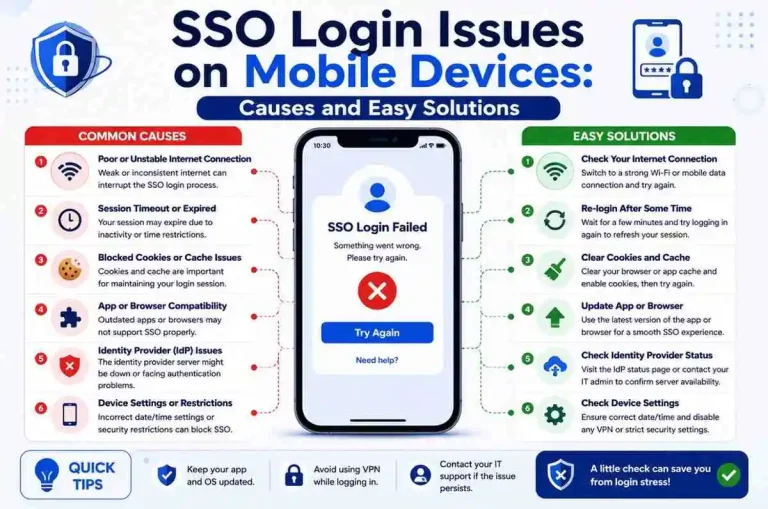
Mobile devices introduce additional complexity because apps may be affected by battery optimization, background restrictions, app permissions, or operating system limitations.
Common Issues
- Battery optimization stopping background authentication
- App permissions disabled
- Outdated mobile app version
- Cached mobile data causing login errors
- Push notifications blocked by the operating system
Proven Solution
- Update the application
- Allow background activity
- Clear app cache and stored data
- Check notification permissions
- Reinstall the app if necessary
- Restart the device after changes
If the mobile app still fails while the desktop version works, the issue may be specific to the mobile operating system or app configuration.
13. SAML or OAuth Configuration Errors
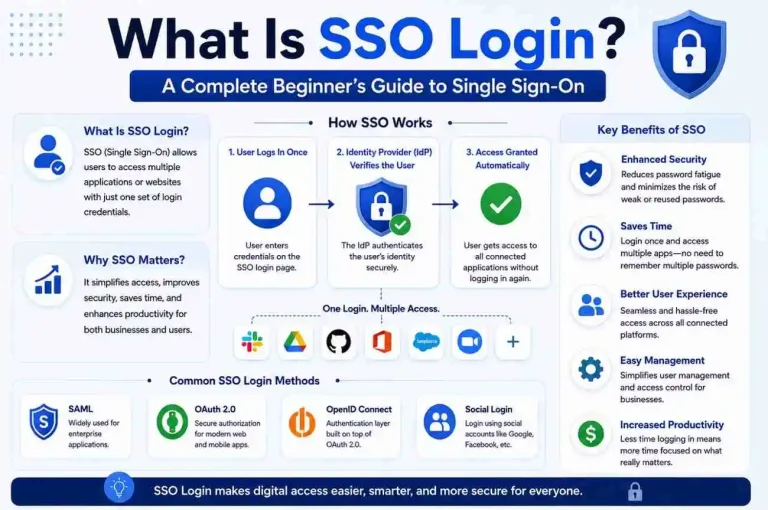
Organizations often connect applications through protocols such as:
- SAML
- OAuth
- OpenID Connect
These protocols allow secure communication between the identity provider and the service provider. However, even a small configuration mistake can break authentication.
Examples include:
- Wrong redirect URL
- Invalid certificates
- Incorrect audience settings
- Mismatched entity IDs
- Expired metadata
- Incorrect client secret or application key
Proven Solution
Administrators should verify:
- Configuration values
- Metadata files
- Certificates
- Endpoint settings
- Redirect and callback URLs
- Token signing and encryption settings
Because these issues are technical and often hidden from end users, they usually require administrator-level troubleshooting.
14. Security Policies Blocking Login
Modern security systems evaluate device trust, geographic location, login behavior, and risk signals before allowing access. Even if the credentials are correct, the login may still be blocked intentionally by policy.
Examples include:
- Untrusted device
- Unapproved location
- Suspicious login attempt
- Non-compliant device
- Missing security updates
- Conditional access rules not being met
Proven Solution
Review:
- Device compliance status
- Security alerts
- Conditional access policies
- Required device enrollment
- Required MFA or trust settings
If the device does not meet policy requirements, the user may need to update the device, enroll it in management software, or use an approved access method.
15. Account Lockout After Multiple Attempts
Repeated login failures often trigger automatic protection. This is a security feature designed to prevent brute-force attacks and unauthorized access.
Symptoms
- Account temporarily blocked
- Locked sign-in
- “Too many attempts” message
- Password reset required before access is restored
Proven Solution
- Wait for the cooldown period to end
- Reset credentials if necessary
- Contact support or the administrator
- Avoid repeated attempts, since they may extend the lockout
If the account is locked frequently, the organization may need to review password policies, MFA settings, or suspicious activity logs.
How to Troubleshoot SSO Login Failures Faster
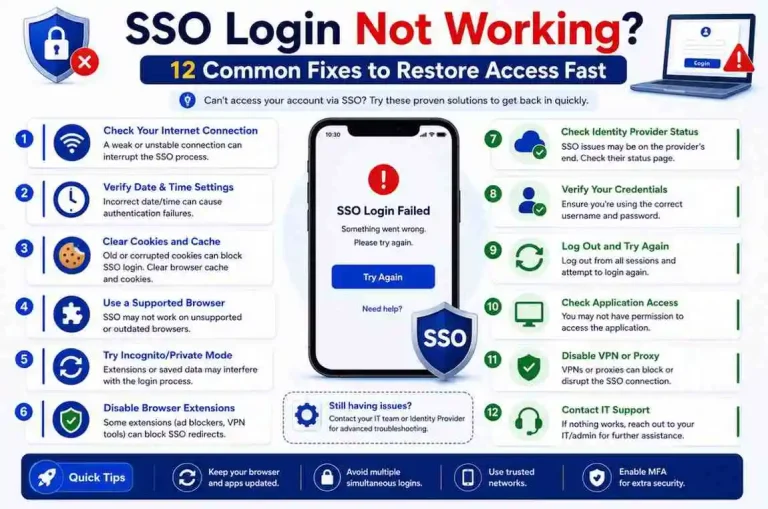
Follow this checklist:
Step 1
Verify credentials.
Step 2
Check internet connection.
Step 3
Clear cache and cookies.
Step 4
Update browser.
Step 5
Disable VPN.
Step 6
Retry authentication.
Step 7
Test another device.
Step 8
Review permissions.
This process solves many login problems because it covers the most common causes of SSO failure, from browser issues to account restrictions and network interference.
If the problem persists after these steps, the issue is likely related to identity provider configuration, application settings, or organizational security policy.
Best Practices to Prevent Future SSO Issues
Organizations should:
- Enable Multi-Factor Authentication
- Monitor authentication logs
- Keep identity systems updated
- Configure session policies carefully
- Apply role-based access control
- Audit permissions regularly
- Educate users on login security
- Test SSO integrations after updates or changes
Users should:
- Use strong passwords
- Keep devices updated
- Avoid unknown or untrusted networks
- Monitor account activity
- Sign out properly when using shared devices
- Keep authenticator apps and recovery methods current
Preventive maintenance is often easier than troubleshooting after a failure occurs. A well-managed identity system reduces downtime, improves security, and creates a more reliable login experience.
When to Contact Technical Support
Contact support if:
- Login fails across multiple devices
- MFA cannot be completed
- Access permissions disappear
- Applications fail repeatedly
- Error messages suggest a system-wide issue
- You suspect the identity provider or SSO configuration is broken
Provide:
- Device details
- Browser version
- Error screenshot
- Time of failure
- Exact error message
- Whether the issue happens on other devices or browsers
This information helps reduce troubleshooting time and allows support teams to identify whether the issue is local, account-related, or system-wide.
Final Thoughts
SSO login failures can feel frustrating, especially when access to multiple applications depends on a single authentication process. A small issue in the browser, device, identity provider, or security policy can interrupt access and make it seem like the entire system is broken.
Fortunately, most problems are not caused by major system failures. They usually come from expired sessions, browser settings, permissions, authentication tokens, network restrictions, MFA issues, or configuration errors.
By understanding how Single Sign-On works and following practical troubleshooting steps, users and organizations can restore access faster and maintain a smoother, more secure login experience.
As businesses continue adopting cloud applications and centralized identity systems, learning to diagnose SSO authentication issues will become an increasingly valuable skill for users, IT teams, and administrators alike.