
Forgot SSO ID? Recover Rajasthan SSO ID & Password – Step-by-Step Guide (2026)
The Rajasthan SSO (Single Sign-On) portal is a centralized platform that provides access to multiple government services with a single login. If you’ve forgotten your SSO ID or password, don’t worry, the government has made the recovery process simple and fully online.
This detailed guide will help you recover your SSO ID and reset your password using different methods like mobile number, email, and more.
What is Rajasthan SSO ID?
Rajasthan SSO ID is a unique digital identity issued by the Government of Rajasthan. It allows citizens, businesses, and government employees to access services such as:
- e-Mitra
- Bhamashah Yojana
- Jan Aadhaar
- Employment services
- Online bill payments
With one login, you can access all these services securely.
When Do You Need Recovery?
You may need to recover your SSO account if:
- You forgot your SSO ID
- You forgot your password
- You lost access to your registered mobile/email
- Your account is inactive for a long time
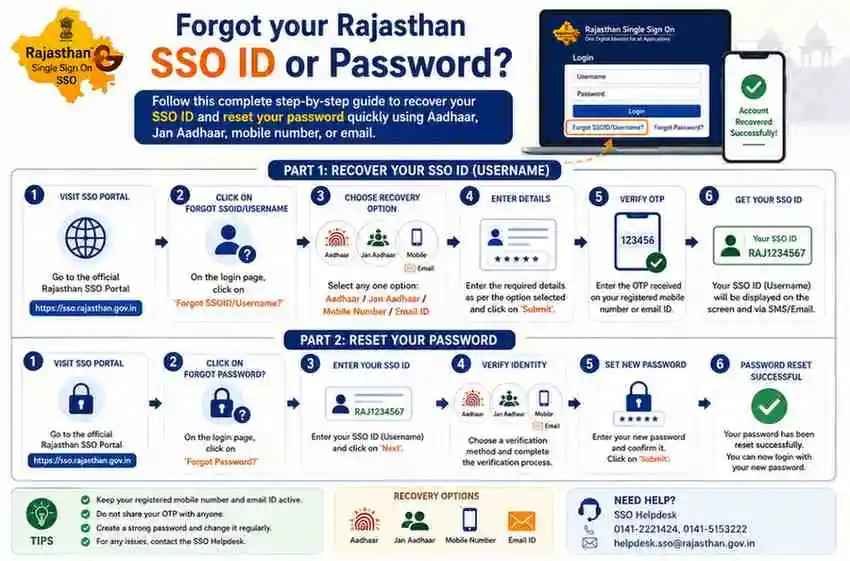
Recover SSO ID Using Mobile Number
This is the easiest and most commonly used method.
Step-by-Step Process:
- Open the official website:
👉 https://sso.rajasthan.gov.in - On the login page, click on:
“Forgot SSO ID” - You will see multiple recovery options. Select:
“Mobile Number” - Enter your registered mobile number
- Click on Submit
- Enter the OTP (One-Time Password) sent to your mobile
- After verification, your SSO ID will be displayed or sent via SMS
Recover SSO ID Using Email
If your mobile number is not active, you can use email.


Steps:
- Visit the SSO portal
- Click on “Forgot SSO ID”
- Choose Email option
- Enter your registered email address
- Click Submit
- Check your inbox (and spam folder)
- Your SSO ID will be sent to your email
Recover Using Aadhaar ID (If Linked)
- Go to SSO portal
- Click Forgot SSO ID
- Select Aadhaar ID/VID option
- Enter Aadhaar number
- Verify via OTP
- Your SSO ID will be shown
Password Reset via Mobile Number

- Go to SSO Login Page
- Click on “Forgot Password”
- Enter your SSO ID
- Choose Mobile Number option
- Enter OTP received on your phone
- Create a new password
- Confirm and submit
Password Reset via Email

- Click Forgot Password
- Enter your SSO ID
- Choose Email recovery
- Open the password reset link sent to your email
- Create a new password
Password Reset via Aadhaar
- Select Aadhaar option
- Enter Aadhaar number
- Verify OTP
- Reset your password
Troubleshooting: If Recovery Is Not Working
Sometimes users face issues during recovery. Here’s how to handle them:
OTP Not Received
- Check network signal
- Wait for a few minutes
- Click “Resend OTP”
- Ensure your number is active
Email Not Received
- Check spam/junk folder
- Ensure correct email entered
- Try again after some time
Mobile/Email Not Registered
- Use Aadhaar method
- Visit e-Mitra center
Offline Help Options
If online recovery fails:
- Visit nearest e-Mitra center
- Contact SSO Helpdesk
- Carry ID proof (Aadhaar, etc.)
Tips to Avoid Losing Your SSO ID Again
- Save your SSO ID in notes or email
- Link both mobile and email
- Use a strong but memorable password
- Avoid sharing login details
- Update your contact details regularly
Frequently Asked Questions (FAQs)
Conclusion
Recovering your Rajasthan SSO ID or password is a quick and simple process if you follow the correct steps. Whether you use your mobile number, email, or Aadhaar, the system is designed to help you regain access easily.
Make sure your contact details are always updated to avoid future issues.